Seating Chart Generator
A custom GPT that builds classroom seating charts from IEP, 504, and behavior constraints, and explains every placement.
- Role
- Solo build with the ChatGPT Custom GPT Builder
- Year
- September 2025
- Status
- Live
- Links
- Open the GPT
- ChatGPT
- Custom GPT Builder
- Google Sheets
The problem
I had a class that year with a lot to track: multiple IEPs, several 504s, and a handful of students whose behavior plans included specific seating accommodations. Random seating, my usual default, wasn't an option. Some students couldn't sit next to each other. Some couldn't even sit where they could see each other. A few needed to be next to my desk so I could keep eyes on them; a few needed to be next to the door, either for scheduled accommodations or to manage their own regulation. The accommodations themselves weren't optional (they were written into legal documents), but the geometry of fitting them all into one room was on me.
A traditional seating chart, the kind you sketch on a sticky note at the back of the gradebook, couldn't hold all of that. I needed something that could take in every constraint, weigh which ones outranked which, and produce a chart I could actually defend if a parent or administrator asked why a student was sitting where they were.
What I built
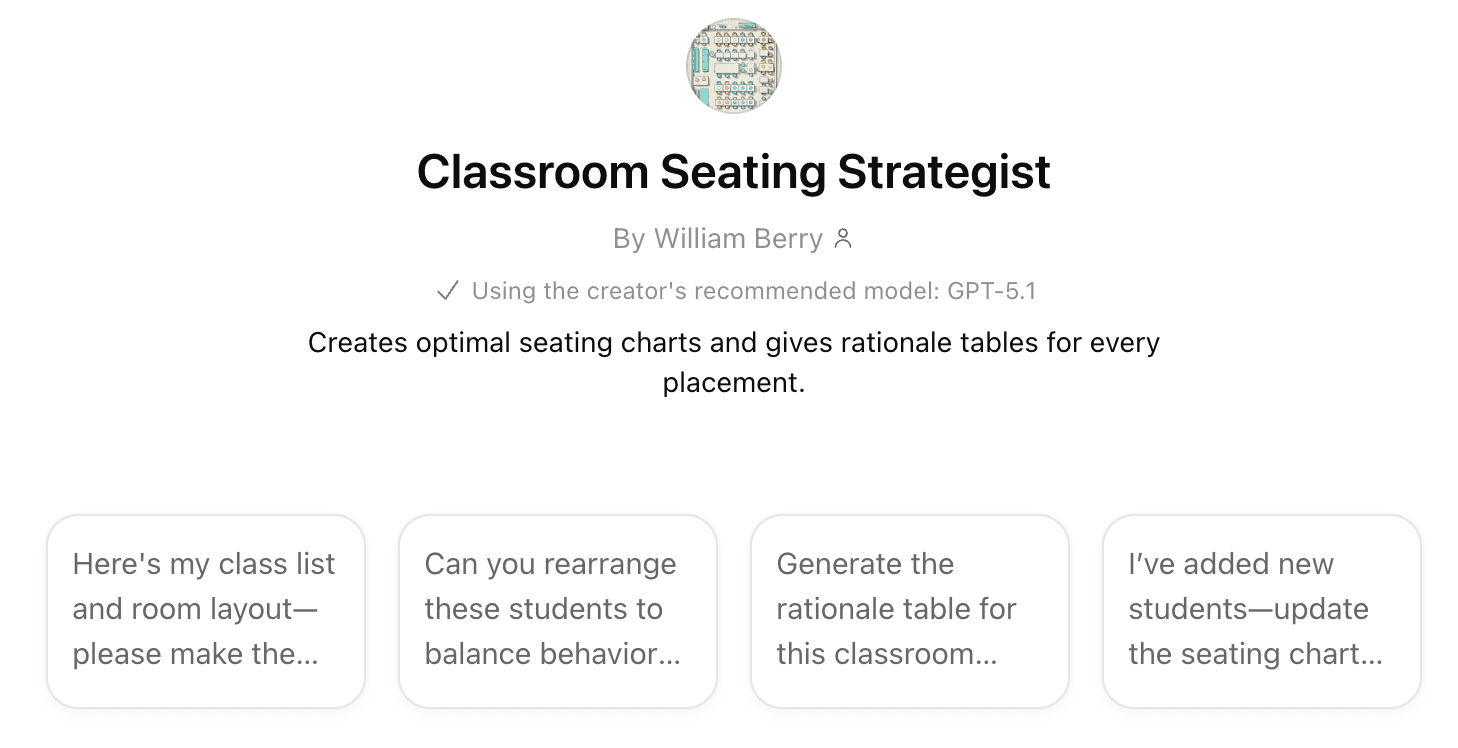
A custom GPT, published on the ChatGPT store, that takes two spreadsheets as input and produces a seating chart with a written justification for every placement.
The first spreadsheet is the roster, one row per student, with columns for the constraints that matter: IEP-driven accommodations, 504 accommodations, behavior-plan separations, "must sit near teacher," "must sit near door," and softer preferences below those. The second spreadsheet is the classroom layout, where the desks are, where my desk is, where the door is, where the windows are. The GPT reads both, holds the constraints in working memory, and outputs a chart that places each student somewhere, followed by a sentence or two explaining why that student is in that seat.
The point of the written justification isn't decoration. It's so a teacher who runs the GPT can look at the result, check the reasoning against what they know about the room, and decide whether to take the chart as-is, regenerate, or hand-edit the spots that aren't quite right.
Key decisions
A custom GPT, not a coded solver. A seating-chart problem is, technically, a constraint satisfaction problem: the kind of thing a script could handle in milliseconds. In hindsight, what made the GPT the right call wasn't the optimization; it was the explanation. A solver can place students; it can't tell you in plain English why this student is by the window and that one is next to your desk. The case for the GPT was that the justification was the deliverable, and the optimization was just what had to happen along the way.
Written justifications for every placement. Extra work for the model, extra text for the teacher to read. Worth it because the alternative is a chart that looks correct but feels arbitrary. A teacher who can't see the reasoning is more likely to second-guess the tool, or worse, override it on a hunch and accidentally undo an accommodation. The justification is what makes the output trustworthy enough to actually use.
Spreadsheet input so other teachers could use it. I designed the input format around two structured spreadsheets specifically so the GPT would be portable. Another teacher could populate the same templates with their own students and their own room and get a useful result: the GPT doesn't need to know which classroom it's working with, only that the data arrives in the shape it expects. The format was the affordance.
IEP and 504 constraints rank above everything else. Real classrooms have impossible constraints: three students all need to be near the teacher's desk, two students who can't sit next to each other both need a window seat. The GPT's instructions encode a strict priority order: IEP and 504 accommodations are non-negotiable, behavior-plan separations come next, and softer preferences (closer to the door, prefer the front row) get satisfied only after the higher-priority constraints are placed. When constraints can't all be honored, the GPT says so in its justifications.
How it gets used
In a typical run, the teacher uploads the two spreadsheets and asks for a chart. The GPT reads the constraints, walks through the layout, and produces a placement per student with a one- or two-sentence justification beside each. The first chart it generates is usually the one I keep, not because the model is infallible, but because the constraints are tight enough that there isn't a lot of room to maneuver, and the GPT's first pass is generally a defensible solution.
Once I have the chart, I take it to the actual classroom and place students according to it. Reality always edits the plan a little (a desk gets moved, a student transfers in, a constraint I forgot to write down turns out to matter), and at that point I make small in-person adjustments. The GPT produces the strong draft; the classroom finalizes it.
What I'd change
The most useful feedback came from another teacher who tried it. They told me they were giving the GPT a lot of follow-up prompts in the same thread (tweaking constraints, asking it to re-place this student or that one, layering changes on changes), and the output started to break down after enough back-and-forth. That makes sense in retrospect: I designed the GPT as a one-shot task. Give it the inputs, get the chart, take the chart. It wasn't built for a long iterative conversation, and the instructions don't say so.
If I were to revisit it, I would do another pass on the system prompt, partly to incorporate feedback from teachers who had used it, but mostly to add an explicit instruction: after a few rounds of revision, start a new thread with the updated spreadsheets rather than continuing to layer prompts on the same chart. That alone would have caught the failure mode that teacher ran into.
Stack and links
Built with the ChatGPT Custom GPT Builder, with input data structured in Google Sheets templates. Published on the ChatGPT store in September 2025 and still live.